Tipalti Help Center home page
  • Get started
    • Onboarding tools
    • Video tutorials
    • Live training
  • User guides
    • Tipalti Hub Home
      • Log in to the Tipalti Hub
      • Manage finances from Home
    • Tipalti AI Assistant
      • Ask the assistant
      • Common prompts
    • Administration
      • Administrative operations
      • Admin settings
      • Custom fields
      • Team management
      • User roles
      • User permissions
      • Email domain setup
      • Email notifications
      • Manage communications
      • Edit and customize templates
    • Multiple entities
      • Multiple entities
      • Switch entities with multi-instance setup
    • Funding
      • Funds overview
      • Manage virtual accounts
      • Fund Tipalti accounts
      • Transfer funds between accounts
      • Multi-FX
    • Payees
      • Search payee information
      • Manage payee status and settings
      • iFrame/ Supplier Hub
      • Manage Supplier Hub payees
      • Manage actions as a payee
      • Add and review payee documents
      • Verification of payee
    • Taxation
      • US tax forms
      • Tax form expiration
      • Tax withholding
      • Certificate of No US Activities
      • Additional documents
      • Non-US tax collection
      • Tax form statuses
    • Procurement
      • New Procurement
      • Original Procurement
    • PO matching
      • New PO matching
      • Original PO matching
    • Bills
    • Tipalti Expenses
      • Get started
      • Create and submit expenses
      • Manage and approve expenses
      • Build expense approval workflows
      • Reimburse expenses
      • Connect your corporate cards
    • Tipalti Cards
      • Tipalti Cards
      • Fund your card
      • Manage cards
      • Monitor card transactions
      • Process transactions
      • ERP sync
      • Credit card statement report
    • Payments
      • Submit payments
      • Manage payments
      • Schedule payments
      • Understanding payment statuses
      • Payment methods coverage: US and ROW
      • Payment methods coverage: UK and EU
      • Payment methods coverage: Canada
      • Payment error codes
      • Managing unsuccessful payments
    • Reports
      • AI-powered reports
      • Payment reports
      • Bill reports
      • Payee reports
      • Tax reports
      • User reports
    • Security practices
      • Email security
      • Business continuity practices
      • Two-factor authentication
      • Detect
  • Integrations
    • 3rd Party Apps
      • Partner Platforms
      • SSO
    • ERPs
      • Sage Intacct
      • NetSuite 2.0
      • Microsoft Business Central
      • QuickBooks
      • Xero
      • Tipalti Connect
      • Acumatica
      • SAP B1
    • File Integration
      • Configure auto-sync settings
      • Import files
      • Export files
  • FAQs
    • General FAQs
    • User guide FAQs
      • Payee FAQs
      • Bill FAQs
      • Card FAQs
      • PO Matching FAQs
      • Payment FAQs
      • Detect FAQs
      • Taxation FAQs
      • Administration FAQs
      • Expenses FAQs
    • ERP FAQs
  • Release notes
  • Dev docs
Sign in
  • Get started  
    • Onboarding tools  
    • Video tutorials  
    • Live training  
  • User guide  
    • Log in to the Tipalti Hub
    • Administration  
      • Administrative operations
      • User roles
    • Multiple entities
    • Funding  
      • View funds required
      • Fund Tipalti accounts
      • Multi-FX  
        • Currency cutoffs and validations
    • Payees  
      • Search payee information
      • Manage payee status and settings
      • iFrame/ Supplier Hub
      • Manage Supplier Hub payees
      • Documents review
    • Taxation  
      • US tax forms
      • Tax form expiration
      • Tax withholding  
        • Withholding rates
        • Income types
        • Tax form and entity types
      • Certificate of No US Activities
      • Additional documents
      • Non-US tax collection
      • Tax form statuses
    • Procurement  
      • System overview
      • Create and track purchase requests
      • Approve purchase requests
      • Mark goods and services as received
      • Vendor registration
      • Send PO PDF
      • Back office  
        • Set reminders
        • Run parallel PR/ vendor approval
        • Emails
        • PO PDF customization
        • Upload budget
        • Customize Procurement forms
        • Contract repository
      • Workflow integrations
    • PO Matching  
      • Matching process
      • Handle matching exceptions
      • Bill routing
      • Matching policies
      • Bill coding
      • Bill approval for PO-backed bills  
        • Approvable bills
        • Non-approvable bills
        • PO updates
      • Prepayments (NetSuite 2.0)
      • Track and match a dropship invoice  
        • Set payees up as dropship vendors
        • Upload and match a dropship invoice
    • Bills  
      • Bill flows
      • Usability
      • Add invoices
      • Manage bills
      • Add comments and files to bills
      • Bill approvers
      • Invoice processing approvals
      • Email Security
      • Tax collection in Bills
      • Bill statuses
    • Tipalti Expenses  
      • Get started
      • Create and submit expenses
      • Manage and approve expenses
      • Reimburse expenses
      • Connect your corporate cards
    • Tipalti Cards  
      • Funds flow
      • Manage cards
      • Card transactions overview
      • Process transactions
      • ERP sync
      • Credit card statement report
    • Submitting payments
    • Payment information  
      • Payment statuses defined
      • Payment methods coverage: US and ROW
      • Payment methods coverage: UK and EU
      • Payment methods coverage: Canada
      • Payment error codes
    • Reports  
      • Smart report builder
      • Payment reports
      • Bill reports
      • Payee reports
      • Tax reports
      • User reports
    • Security practices  
      • Email security
      • Business continuity practices
      • Two-factor authentication
    • Detect
  • Integrations  
    • 3rd Party Apps  
      • Partner Platforms
      • SSO
    • ERPs  
      • Sage Intacct
      • NetSuite 2.0
      • Microsoft Business Central
      • QuickBooks
      • Xero
      • Tipalti Connect
      • Acumatica
      • SAP B1
    • File Integration  
      • Configure auto-sync settings
      • Import files
      • Export files
  • FAQs  
    • General FAQs
    • User guide FAQs  
      • Bill FAQs
      • Card FAQs
      • PO Matching FAQs
      • Payment FAQs
      • Detect FAQs
      • Taxation FAQs
      • Administration FAQs
      • Expenses FAQs
    • ERP FAQs
  • Release notes
  • Dev docs
  1. Tipalti
  2. Standalone articles
  3. Standalone articles

Articles in this section

  • Access Tipalti help resources
  • International holidays
  • 2020 Changes to the 1099 Preparation Report
  • Changes to the W-8BEN and W-8BEN-E Tax Forms
  • Payment statuses defined
  • New User Quick Start Guide
  • Pay bills by card
  • Payoneer Account Holders
  • Procurement REST API documentation
  • Safelist Tipalti App
See more

Access Tipalti help resources

If you have a question or need assistance, you can contact Tipalti Support directly through your Tipalti Hub or the Tipalti Help Center.

This article explains how to open a ticket, chat with Support, follow up on existing cases, and view your historical support requests, including those where you’ve been CC’d.

Access help from the Tipalti Hub
Description

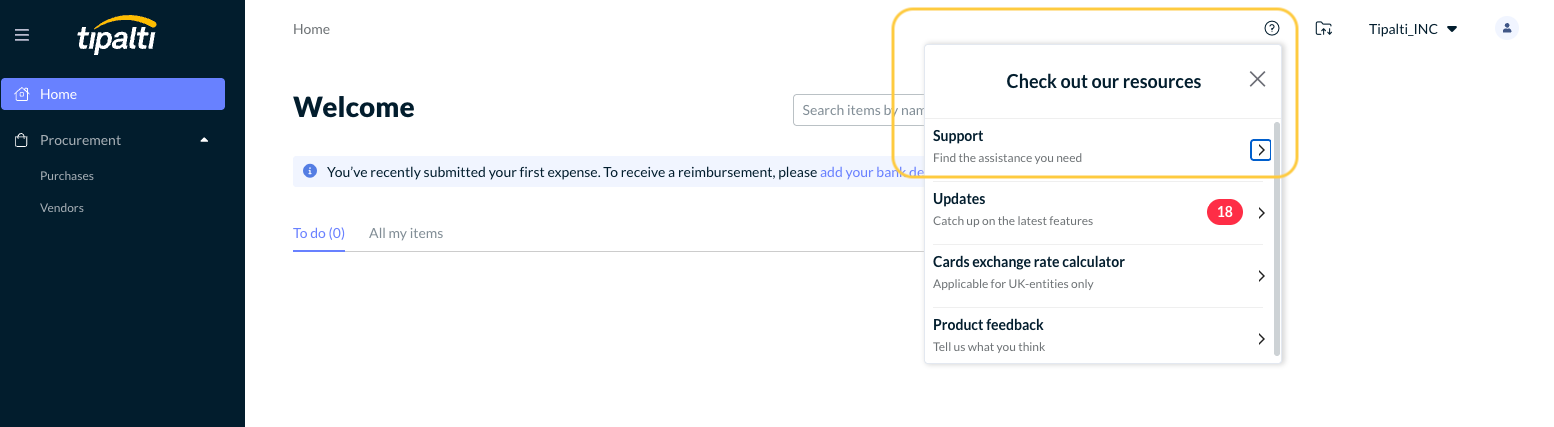
To reach Support from the Tipalti Hub:

  1. Click the Help (?) icon in the top-right corner.
  2. Select Support.
  3. Choose one of the available options:
    • Submit a ticket – Create a new Support request for any question or issue.
    • Live chat with our team – Start a real-time conversation with a Support representative (available during business hours for eligible plans).
    • Help Center – Browse articles, user guides, and FAQs.

      Description

Access the Help Center

When you click Help Center, a new tab opens to Tipalti’s online Help Center.
The Help Center uses the same login credentials as your Tipalti Hub.

Description
If you are not signed in:

  • You’ll see a “Sign in” link in the top-right corner.
  • Clicking it will redirect you to the Tipalti Hub login page, just like when you log in to your account.
  • Enter your Tipalti Hub credentials or sign in with Single Sign On (SSO), and you’ll automatically be redirected back to the Help Center, signed in.

If you are already signed in:

  • You’ll see your email address or username in the top-right corner.
  • You can now browse articles or access your Support tickets.

    You must be signed in to view your ticket history or follow up on existing requests.

Submit a new support ticket

To open a new request for assistance:

  1. From your Tipalti Hub, click Help (?) → Support → Submit a ticket.
    The Submit a request page will open in the Help Center.
  2. Fill out the ticket form:
    • CC (optional): Add any colleagues who should receive updates on this ticket.
    • Category: Select the issue type that best matches your request.
    • Subject: Provide a brief, clear summary of the issue.
    • Description: Describe your question or problem in detail.
      You can also record your screen using the Record my screen option.
    • Attachments: Upload any screenshots or supporting files.
  3. Click Submit to send your request.

After submission:

  • You’ll receive a confirmation email containing your ticket ID.
  • You can reply to this email or manage your ticket directly in the Help Center.

    Description

Track your existing tickets

Once you’re signed into the Help Center:

  1. Click your username in the top-right corner.
  2. Select My activities from the dropdown menu.

Description


My Requests Page
The My requests page lists all your Support cases. Here, you can:

  • View open, pending, and solved tickets.
  • Check ticket IDs, creation dates, last activity, and status.
  • Search by keyword or filter by status.
  • Click a ticket subject to open and review the conversation.

Viewing requests you’re CC’d on
You can also see any tickets where you’ve been CC’d:

  1. On the My requests page, click the Requests I’m CC’d on tab.
  2. This tab displays all tickets where your email address was copied.
  3. Click a subject to open and view the ticket details.

    Description

View and update ticket details

To open or update a ticket:

  1. Click the ticket subject from your My requests list.
  2. The ticket detail view will show:
    • The full conversation history with Support.
    • Attachments shared between you and Tipalti.
    • The assigned Support representative and ticket status.
  3. Scroll to the bottom to add a comment, attach files, or record a screen.
  4. Click Submit to send your update.

    Description

You can also reply directly to the Support email — your message automatically appears in the same Help Center thread.

Contact Tipalti Support

You can contact Support through either channel:

  • Via email: Reply directly to your ticket email to continue the conversation.
  • Via the Help Center: Open your ticket under My activities and add a new comment.

All correspondence stays synchronized between your email inbox and Help Center ticket view.

Troubleshooting access issues

If you cannot view your tickets:

  • Ensure you’re logged in with the same email address used to create the request.
  • Check your spam/junk folder for Support messages.
  • If the issue persists, submit a new ticket and note that you can’t access your previous requests.

Additional Resources

  • Tipalti Help Center – Browse articles, user guides, and FAQs.
  • Tipalti System Status – Check for any service incidents or maintenance.


Was this article helpful?

We’d love the opportunity to improve. Submit your feedback.

We’re glad you enjoyed the article!

Have more questions? Submit a request
Return to top
Privacy Policy | Terms of Use | Payer/Sender Rights | Customer Assistance Policy
LinkedIn Instagram Facebook Twitter YouTube
Contact support