Tipalti Help Center home page
  • Get started
    • Onboarding tools
    • Video tutorials
  • User guides
    • Tipalti Hub Home
      • Log in to the Tipalti Hub
      • Home for employees
      • Home for finance team
    • Tipalti AI Assistant
      • Ask the assistant
      • Common prompts
    • Administration
      • General
      • Communications
      • Bills setup
    • Multiple entities
      • Multiple entities
      • Switch entities with multi-instance setup
    • Funding
      • Funds overview
      • Manage virtual accounts
      • Fund Tipalti accounts
      • Transfer funds between accounts
      • Fund Multi-FX accounts
    • Payees
      • Add, import, and invite payees
      • Search payee information
      • Manage payee status and settings
      • iFrame/ Supplier Hub
      • Managing your payees
      • Manage actions as a payee
      • Add and review payee documents
      • Verification of payee
    • Taxation
      • US tax forms
      • Tax form expiration
      • Tax withholding
      • Certificate of No US Activities
      • Additional documents
      • Non-US tax collection
      • Tax form statuses
    • Procurement
      • New Procurement
      • Original Procurement
    • PO matching
      • What's new with PO matching
      • PO matching
      • Review PO matching
      • Updates to POs
      • Bill approval for PO-backed bills
      • Match dropship invoices
      • Handle prepayments
      • Matching process
      • Bill routing
      • Matching policies
    • Bills
      • Start using Bills
      • Manage bills
      • Approve and pay
      • How Bills works
    • Tipalti Expenses
      • Get started
      • Create and submit expenses
      • Manage and approve expenses
      • Build expense approval workflows
      • Reimburse expenses
      • Connect and manage your corporate cards
    • Tipalti Cards
      • Tipalti Cards
      • Fund your card
      • Manage cards
      • Process transactions
      • Monitor card transactions
      • Card matching
      • ERP sync
      • Credit card statement report
    • Payments
      • Submit payments
      • Manage payments
      • Schedule payments
      • Understanding payment statuses
      • Payment methods coverage: US and ROW
      • Payment methods coverage: UK and EU
      • Payment methods coverage: Canada
      • Payment error codes
      • Managing unsuccessful payments
    • Reports
      • AI-powered reports
      • Payment reports
      • Bill reports
      • Payee reports
      • Tax reports
      • User reports
    • Security practices
      • Email security
      • Business continuity practices
      • Two-factor authentication
      • Detect
  • Integrations
    • 3rd Party Apps
      • Partner Platforms
      • SSO
    • ERPs
      • Sage Intacct
      • NetSuite 2.0
      • Microsoft Business Central
      • QuickBooks
      • Xero
      • Tipalti Connect
      • Acumatica
      • SAP B1
    • File Integration
      • Configure auto-sync settings
      • Import files
      • Export files
  • Resources
    • Webinars
    • General FAQs
    • User guide FAQs
      • Payee FAQs
      • Bill FAQs
      • Card FAQs
      • PO Matching FAQs
      • Payment FAQs
      • Detect FAQs
      • Taxation FAQs
      • Administration FAQs
      • Expenses FAQs
    • ERP FAQs
  • Release notes
  • Dev docs
Sign in
  • Get started  
    • Onboarding tools  
    • Video tutorials  
    • Live training  
  • User guide  
    • Log in to the Tipalti Hub
    • Administration  
      • Administrative operations
      • User roles
    • Multiple entities
    • Funding  
      • View funds required
      • Fund Tipalti accounts
      • Fund Multi-FX accounts  
        • Currency cutoffs and validations
    • Payees  
      • Search payee information
      • Manage payee status and settings
      • iFrame/ Supplier Hub
      • Managing your payees
      • Documents review
    • Taxation  
      • US tax forms
      • Tax form expiration
      • Tax withholding  
        • Withholding rates
        • Income types
        • Tax form and entity types
      • Certificate of No US Activities
      • Additional documents
      • Non-US tax collection
      • Tax form statuses
    • Procurement  
      • System overview
      • Create and track purchase requests
      • Approve purchase requests
      • Mark goods and services as received
      • Vendor registration
      • Send PO PDF
      • Back office  
        • Set reminders
        • Run parallel PR/ vendor approval
        • Emails
        • PO PDF customization
        • Upload budget
        • Customize Procurement forms
        • Contract repository
      • Workflow integrations
    • PO Matching  
      • Matching process
      • Handle matching exceptions
      • Bill routing
      • Matching policies
      • Bill coding
      • Bill approval for PO-backed bills  
        • Approvable bills
        • Non-approvable bills
        • PO updates
      • Prepayments (NetSuite 2.0)
      • Track and match a dropship invoice  
        • Set payees up as dropship vendors
        • Upload and match a dropship invoice
    • Bills  
      • Bill flows
      • Usability
      • Add invoices
      • Manage bills
      • Add comments and files to bills
      • Bill approvers
      • Invoice processing approvals
      • Email Security
      • Tax collection in Bills
      • Bill statuses
    • Tipalti Expenses  
      • Get started
      • Create and submit expenses
      • Manage and approve expenses
      • Reimburse expenses
      • Connect your corporate cards
    • Tipalti Cards  
      • Funds flow
      • Manage cards
      • Card transactions overview
      • Process transactions
      • ERP sync
      • Credit card statement report
    • Submitting payments
    • Payment information  
      • Payment statuses defined
      • Payment methods coverage: US and ROW
      • Payment methods coverage: UK and EU
      • Payment methods coverage: Canada
      • Payment error codes
    • Reports  
      • Smart report builder
      • Payment reports
      • Bill reports
      • Payee reports
      • Tax reports
      • User reports
    • Security practices  
      • Email security
      • Business continuity practices
      • Two-factor authentication
    • Detect
  • Integrations  
    • 3rd Party Apps  
      • Partner Platforms
      • SSO
    • ERPs  
      • Sage Intacct
      • NetSuite 2.0
      • Microsoft Business Central
      • QuickBooks
      • Xero
      • Tipalti Connect
      • Acumatica
      • SAP B1
    • File Integration  
      • Configure auto-sync settings
      • Import files
      • Export files
  • FAQs  
    • General FAQs
    • User guide FAQs  
      • Bill FAQs
      • Card FAQs
      • PO Matching FAQs
      • Payment FAQs
      • Detect FAQs
      • Taxation FAQs
      • Administration FAQs
      • Expenses FAQs
    • ERP FAQs
  • Release notes
  • Dev docs
  1. Tipalti
  2. User guide
  3. Payments
Follow

Articles in this section

  • Submit payments
  • Schedule payments
  • Manage payments
  • Understanding payment statuses
  • Payment methods coverage - US & ROW
  • Payment methods coverage - UK & EU
  • Payment methods coverage - Canada
  • Payment error codes defined
  • Managing unsuccessful payments

Understanding payment statuses

Required user roles: Finance manager or Finance approver
Or custom roles that include: View payments or Update payments.

  • Important: New detailed payment statuses started rolling out gradually from December 22, 2025.
  • Any payments submitted before will not be affected and will use the existing payment statuses.

Tipalti's payment statuses provide clear, real-time visibility into each step of your payment, enabling you to understand exactly where your payment stands. Statuses appear in the Tipalti Hub (in Manage payments and Reports), REST APIs, and webhooks.

Payment flows via the payment method

Payments follow a structured lifecycle from creation → validation → transmission → completion. Payment flows differ slightly depending on the payment method:

Electronic bank payments

(ACH, Wire, Global ACH, SEPA, Local Bank Transfers)

Description

Check payments & Virtual card transactions
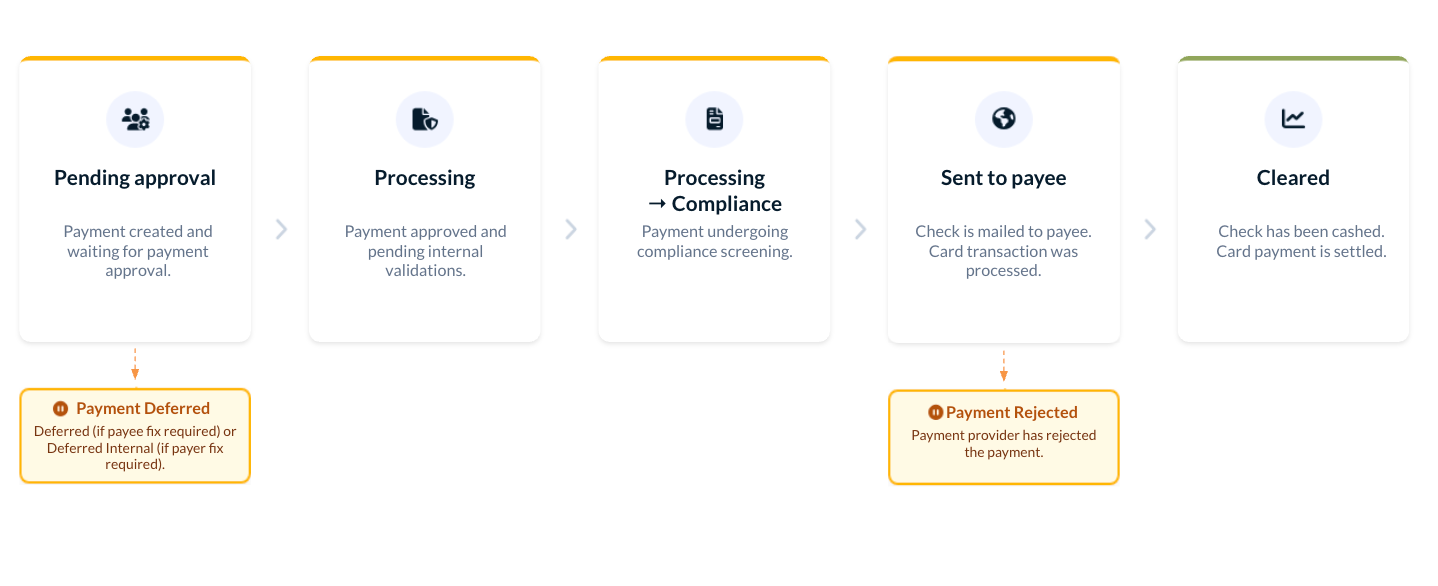
Description

T&E and Bills Card transactions use different statuses and are tracked in the Card transactions screen.

Payment statuses breakdown

Statuses are grouped by lifecycle stage for clarity.

Pre-processing statuses

These statuses appear before Tipalti begins to validate or transmit the payment.

Status

Description

Scheduled
  • Payment is scheduled for a future date. Go to Schedule payments.
Pending approval (NEW)
 
  • Payment was created and is waiting for required approvals.
Pending funds
  • Payment has been submitted to Tipalti, but is awaiting sufficient funds in the payer account before the payment can be paid.

Processing statuses

These statuses indicate that the payment is being actively validated, screened, or transmitted, but has not yet been confirmed as delivered.

Status

Description

Processing (NEW)
  • Payment has been approved and entered the processing flow, including validation and preparation for transfer.
Processing → 
Risk review (NEW)
 
  • The payment is under risk review.
  • This status is only relevant if you use the Detect module.
Processing → 
Compliance check (NEW)
  • Payment is undergoing compliance screening (e.g., OFAC, verification of payee).
Sent to payee (NEW)

 
  • Payment was sent from Tipalti and is on the way to the payee's account.

Completed statuses

These statuses indicate the payment has completed the necessary checks and is being delivered.

Status

Description

Paid
  • The payment provider has processed the transaction. This is the final status from Tipalti's perspective. For all payment methods except check and card transactions, this does not confirm receipt of funds at the payee's bank — that confirmation is not available from payment providers at this time. For Virtual card transactions, a "Paid" status indicates that the beneficiary can process the transaction and receive the payment after Tipalti provides the payment details. 
Cleared
  • Final confirmation that a paper check/Virtual card transaction has been cashed by the payee. This status applies to check payments and Virtual card transactions only.

Unsuccessful statuses

These statuses indicate that the payment failed or was canceled. The reason for the failure is displayed in the Tipalti Hub (Payments > Manage payments) by clicking on the payment batch.
For more information, go to Managing unsuccessful payments.

Status

Description

Deferred
  • Payment has failed before submission to the payment providers.
  • A notification is sent to the payee with the reason for deferral.
  • To receive payments, the payee must amend the details or upload the necessary documentation.
Deferred (Internal)
  • Payment has failed before submission due to an internal error.
  • An alert is sent to users in your team who receive email notifications to fix the issue or contact support.
Rejected
  • Payment has been rejected by the payment provider. In rare cases, this could include payments that were previously marked as 'Paid'.
Canceled
  • The payment was canceled before processing began.

Common questions

How can I track payment statuses?

You can track a payment's status by going to Manage payments in the Tipalti Hub, selecting a payment, and opening the side panel. The current status is shown under the Track progress bar. When you hover on a status, you'll see additional information, such as dates or deferred reasons, in a tooltip.

Description

You can also filter payments by their status under the Pending my approval and All payments subtab.

Description

When would I see the 'Pending Funds' status?
  • If your account is missing the required funds, the payment will be pending until your account is funded. For more, go to Funds overview.
  • If you are an ACH debit payer and funds are being automatically collected through ACH debit.
Why is a payment being held in 'Processing'?

A payment may remain in the Processing status if it is being validated and prepared, or the provider has not yet acknowledged the payment. It may also go through sub-statuses, including:

  • Compliance check (regulatory or security checks, e.g., OFAC).
  • Risk review (fraud prevention checks, only for payers using Detect).
How will the new statuses affect REST APIs?

REST APIs remain compatible, but you may want to update any custom filtering based on status names.

The new, detailed payment statuses are visible to all users on payment screens in the Tipalti Hub since December 22, 2025. No system changes are needed to view the new statuses. However, to sync the new statuses with integrated APIs, you must update your API integration to include the new property, "detailedStatus". If you don't update your API, payments will be processed as usual with the old statuses.

For more information, go to Add detailed payment statuses in the Developer Docs.

Is there no longer a 'Submitted' status?

In the new detailed payment statuses, Submitted was broken down into distinct statuses: Pending approval, Processing, Processing→ Compliance, Processing→ Risk review, and Sent to payee for increased clarity. Any email notifications triggered by the submit action won't be affected.

How do check payments differ?

Checks remain as Sent to Payee until they are cashed. Only then will the status change to Cleared.

Will older payments show the new statuses?

No. Only payments created after the rollout reaches your environment will show the new statuses.

Was this article helpful?

We’d love the opportunity to improve. Submit your feedback.

We’re glad you enjoyed the article!

Have more questions? Submit a request
Return to top
Privacy Policy | Terms of Use | Payer/Sender Rights | Customer Assistance Policy
LinkedIn Instagram Facebook Twitter YouTube
Contact support